FAQ & common issues
The questions, errors, and gotchas that come up most often, grouped by area. If you don't find your issue here, check the other pages in this section or contact support.
Cameras
Cameras aren't reaching their target FPS
Camera FPS is limited by the lowest of three factors:
- Acquisition rate — how fast the camera captures a new image.
- Exposure time — effectively
1 / exposure. - Image-copy time — how long the PC takes to move each image into memory. This is the only one that scales with camera count, so it's the usual bottleneck.
Image-copy time is constrained by:
- Memory speed — too slow to copy multiple large images at once.
- Network-card PCIe lanes — not enough bandwidth.
- CPU PCIe lanes — not enough lanes to feed the motherboard's slots.
- RAM: DDR4-3200 for up to 8 × 5 MP cameras · DDR5-5200 for up to 8 × 9 MP cameras
- Network card: ≥ PCIe 3.0 ×4 (5 MP) · ≥ PCIe 3.0 ×8 or PCIe 4.0 ×4 (9 MP)
When one camera starts accumulating frames it drags down the others — the degradation is not linear.
Cameras flicker in Mocap Studio
Flickering almost always comes with an FPS drop and many bad frames. The root cause is the PC not transferring all camera images fast enough (memory speed, PCIe bandwidth, or the card's slot). When the PC can't keep up, cameras compete for resources and one falling behind destabilizes the rest.
Check:
- Whether FPS drops when the flicker starts.
- Whether reducing the number of active cameras stops it.
- That RAM speed and network-card lanes meet the specs above, and the card is in a slot that actually provides those lanes.
Resolve:
- Enable the rated memory speed in BIOS/UEFI (look for XMP, EXPO, DOCP, A-XMP, Memory Profile, or Advanced Mode).
- Move the network card to a slot with more lanes.
- Temporarily reduce camera count or resolution/FPS to confirm the bottleneck.
- Rule out heavy CPU/GPU load, bad cables, or unstable power.
A camera keeps disconnecting and reconnecting
Almost always hardware. Swap each of these in turn to find the culprit:
- Ethernet cable — poor quality or interference.
- Power supply — failing PSU/brick.
- SFP module — unstable module.
A camera isn't recognized
- Confirm the camera is powered on.
- Verify it's connected to the network and the link to the PC is up.
- Confirm the PC's IP configuration (a static IP is recommended).
- Power-cycle the camera (both power and Ethernet).
- Test the Ethernet cable on a known-good port.
After calibration, one or more cameras stayed at the origin
The camera failed to calibrate — usually because it was pointed at a bright light source. Bright light makes the camera track the light instead of the calibration sphere. Re-aim so no camera looks directly at a light.
Calibration quality is only ~50%
- Update the Mocap Unleashed server to 3.1.8.0 or later.
- Move slowly — a common mistake is walking slowly but waving the sphere up and down too fast.
- Maximize coverage of the capture volume during calibration.
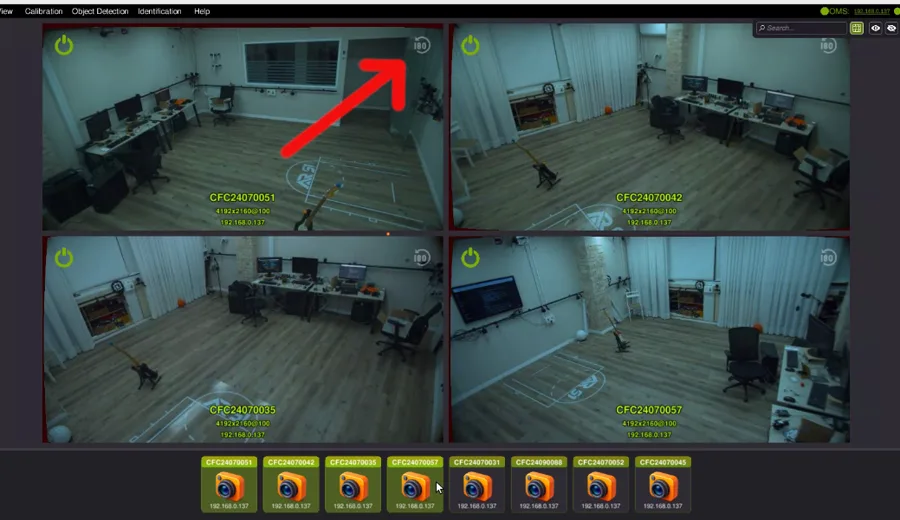
My camera image is upside down
Use the reverse button inside Mocap Studio to flip the image — no need to physically rotate the camera.
My camera shows a low frame rate
- Exposure too long — it must be shorter than
1 / fps(for 100 FPS, set exposure to 10000 µs). - Bad/interfering Ethernet cable — the camera and PC negotiate link quality; a damaged cable lowers it. Swap the cable.
- Power problem — a damaged power cable/brick gives inconsistent supply. Swap it.
What's a good height to hang the cameras?
For a standard 7 × 7 m setup, hang cameras 2.3–2.5 m high. This balances:
- Less occlusion — an overhead view keeps people from blocking each other (common at waist height).
- A good angle for the neural net — too steep an angle hurts tracking quality.
Networking
Mocap Studio finds registration (OMS) but not the vision server (CVS)
Usually a network issue — update Mocap Studio to a version above 3.0.2.39.
The server won't start — "no internet connection"
The system must reach the AR-51 cloud licensing server to validate the license before launching; if it can't, it won't start.
If the machine can't reach the internet for validation, contact the AR-51 sales team for an offline option.
Skeletons don't appear in the Unity / Unreal client
- Make sure the client is on the same network.
- Test from another device or a different class of client (PC vs VR). We've seen a firewall doing deep-packet inspection break the PC app while VR worked.
- On wireless, make sure the Wi-Fi channel isn't crowded — congestion causes jerky motion and latency.
- Restart the client application.
Device calibration
My device can't complete device calibration
- Subnet mismatch — the device and server must be on the same subnet. E.g. a headset on
172.19.x.xcan't reach a server on192.168.x.x. - Firewall — device calibration is a service on the end device and is easily blocked. Allow new connections on both private and public networks (PC or tethered VR).
- Guardian / passthrough — the Quest must be in a VR mode where it can recognize its Guardian boundaries (it can't calibrate in see-through-only mode).
- Clock sync — calibration matches wrist data from the vision server with the device using timestamps; if the device and server clocks aren't synchronized, it fails.
Camera calibration
The checkerboard isn't detected
- Focus — make sure the images are sharp.
- Size / occlusion — the board must be large enough and unobstructed.
- Flatness — it must lie flat on the floor, with no folds or waves.
- Angle — avoid a very shallow angle, which prevents the QR codes from being read.
The light sphere isn't detected
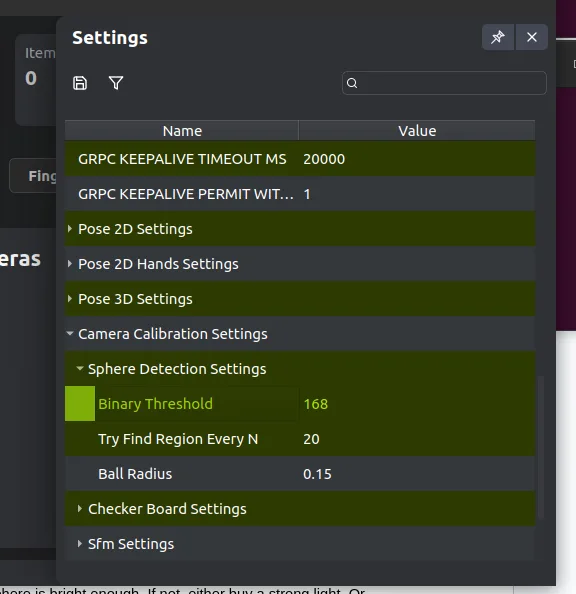
Make sure the sphere is bright enough — use a stronger light, or lower the Binary Threshold under Sphere Detection Settings in the AR-51 server.
The character doesn't align with the real person
Poor alignment in Mocap Studio almost always points to calibration:
- Faulty calibration — too few calibration-orb samples, or poorly distributed samples.
- Camera moved after calibration — any nudge or knock breaks the overlap; recalibrate.
- Unsupported lens — e.g. a 4 mm lens on a 5 MP camera, or a 6 mm lens on a 9 MP camera. The error grows toward the edges of the image while the center stays close.
Tracking quality
"Ghosts" (false people) appear in crowded scenes
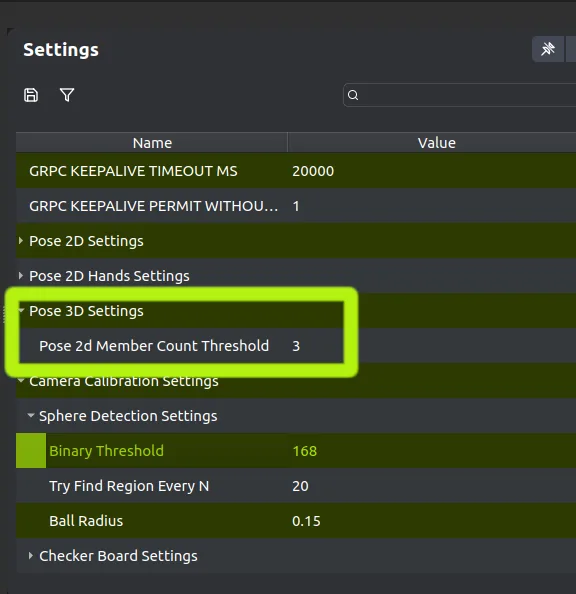
With many people near the bounds, the system can register false positives from accidental good fits. Raise the "Pose 2D Member Count Threshold" server parameter — the minimum number of cameras that must see a person to confirm them. A ghost is unlikely to be seen by several cameras at once.
The skeleton shakes with high-frequency noise
Match the camera frame rate to a multiple of the mains light frequency:
- 120 FPS in the Americas (2 × 60 Hz)
- 100 FPS in most other countries (2 × 50 Hz)
Skeleton motion is jagged, freezes, or moves in bursts
- System performance — Mocap Studio is on an underpowered PC, or another app (e.g. AnyDesk) is hogging the GPU.
- Network congestion — a slow/congested network drops packets and queues messages, producing bursts followed by freezes.
Ghosts appear floating above the capture area
- Make sure cameras aren't aimed in overly similar directions.
- Set a stricter
y(height) limit on the bounds — if a character's center of mass exceeds the height threshold, it won't appear.
The spine/back moves unnaturally when walking
This is usually the foot-sliding prevention mechanism. In Mocap Studio settings, set Foot Solver to Default.

Finger motion is too shaky
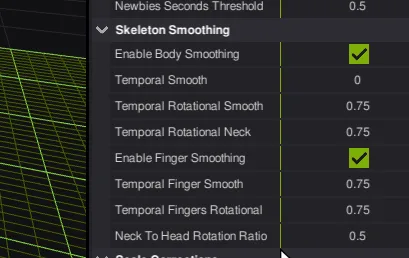
Increase finger smoothing in Mocap Studio:
- Enable "Enable Finger Smoothing".
- Raise "Temporal Fingers Rotational" (e.g. to 0.95).
Higher smoothing adds a little latency.
Objects/skeletons vanish above a certain height (e.g. 2 m)
They've left the bounding box. By default the box runs from the floor up to the height of the cameras — so with cameras at 2 m, anything above 2 m disappears until it drops back down. Load the current bounds in Mocap Studio and adjust them to your needs.
Infrastructure & OS
The NVIDIA driver isn't detected
Usually a system update broke the previous driver — reinstall the NVIDIA driver.
Ubuntu can't find a network connection
Often happens after a reboot that installed a new kernel, which fails to register with Secure Boot.
- Reboot and select a previous kernel.
- If the network works on the old kernel, it's the Secure Boot issue.
- In BIOS, disable Secure Boot (or set it to "Custom" instead of "Windows").
- Boot your working kernel and reinstall the current kernel from system updates (now with Secure Boot disabled).